
Help
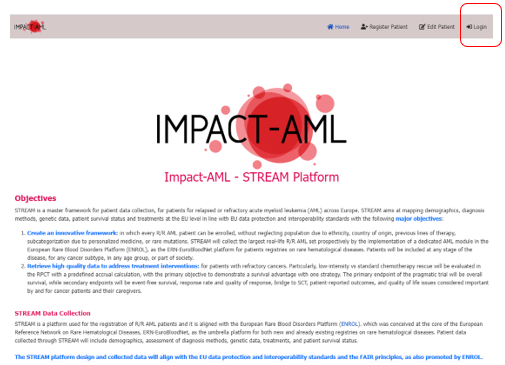
On the home page, you will find a brief overview of STREAM and its objectives.
Access to register and edit patient data is strictly controlled to protect patients’ privacy. Only authorised users can access STREAM using their personal username and password.
By clicking on the “Login” button at the top right of the Home page, you can request an account or log in:
The IMPACT-AML team reviews registration requests and either approves them or requests further information.
Please contact us at
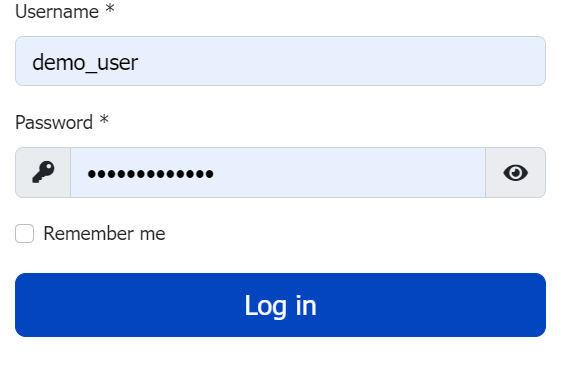
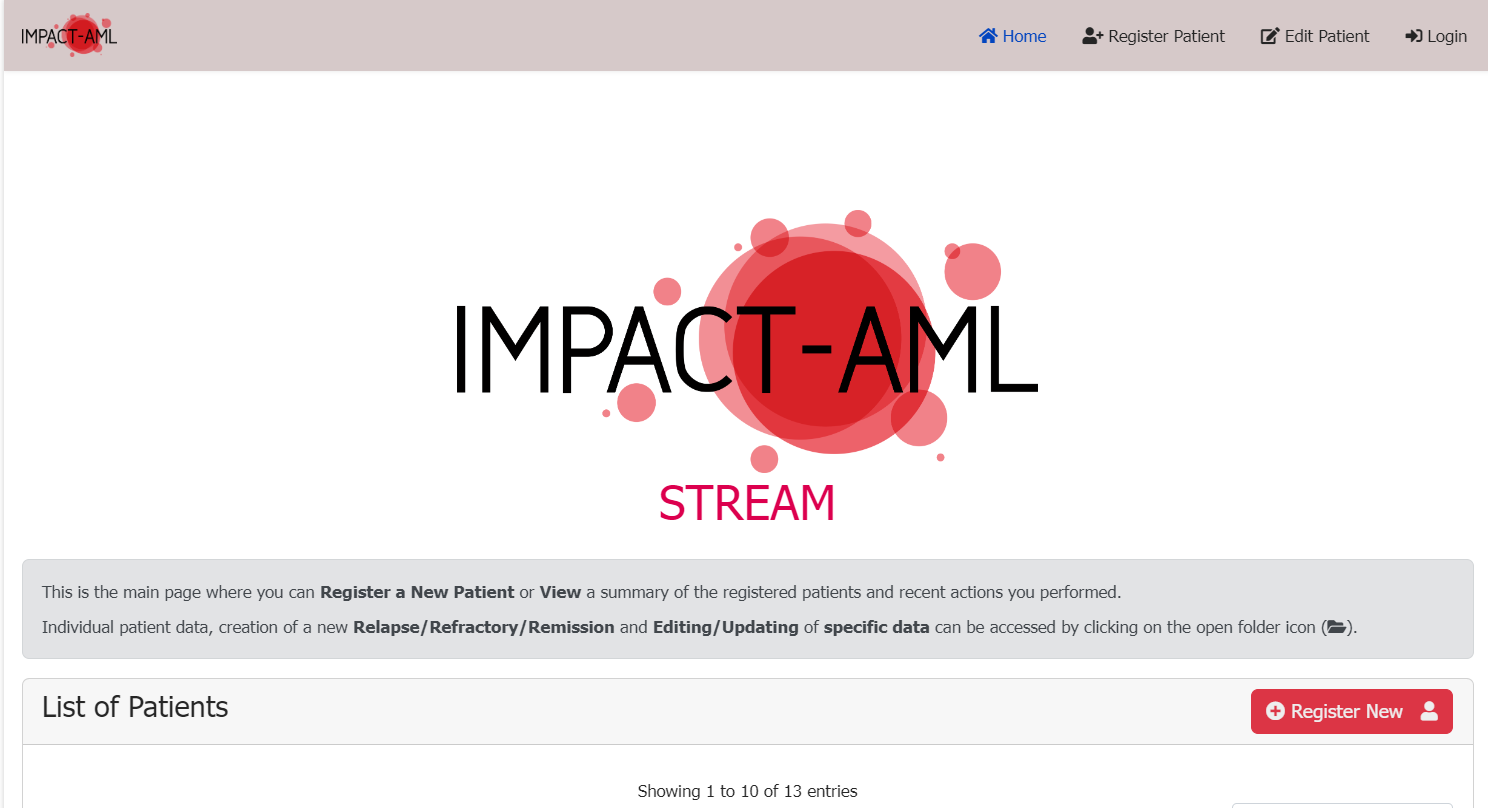
Once you have successfully logged in, you will reach the main page where you can Register a New Patient or View a summary of the registered patients and your recent actions.
Data entry consists of three main steps, detailed in the section Entering patient data:
- Register new patient: Enter the basic mandatory data needed to generate the patient’s pseudonym.
- First diagnosis data registration: Enter the patient’s mandatory and optional data for the first time.
- Follow-up (in Relapse/Refractory/Remission): Update the patient’s mandatory and optional data since the last follow-up.
Mandatory and optional fields for first diagnosis and follow-up
registrations are divided into the following four main categories:
Categories:
- Demographics
- Assessment
- Treatments
- Survival
You can navigate through the Categories by clicking them in the navigation bar below the patient’s pseudonym and the First Diagnosis, Relapse/Refractory, or Remission date:

Inside each Category the fields are grouped into Sub-sections.
- Data parameters marked with * are mandatory and should be completed before pressing the Save button.
- You need to Save all sub-sections and Confirm all changes to confirm the First diagnosis/Relapse/Refractory/Remission data. Otherwise, the patient information will remain unconfirmed.

When entering patient data, you will find fields with predefined options, including:
-
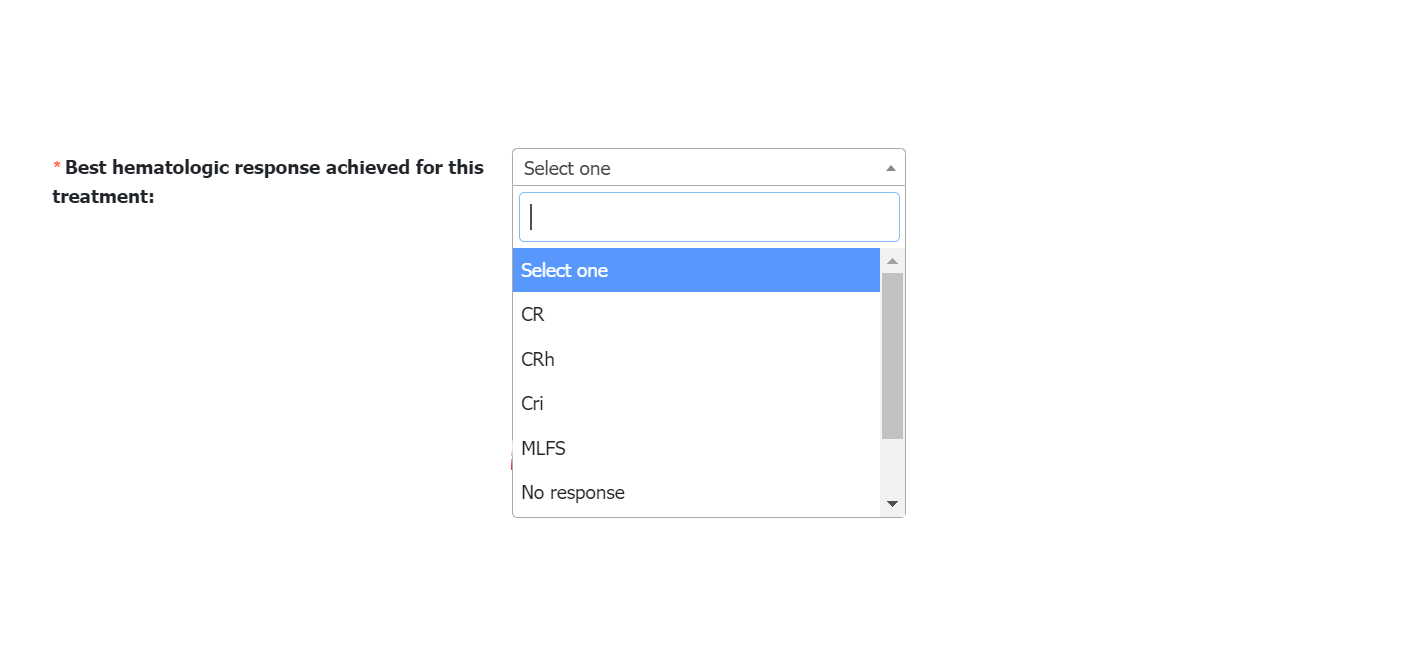
Single option selection: Select an option from a dropdown list by scrolling or typing in the search box. For example:
-
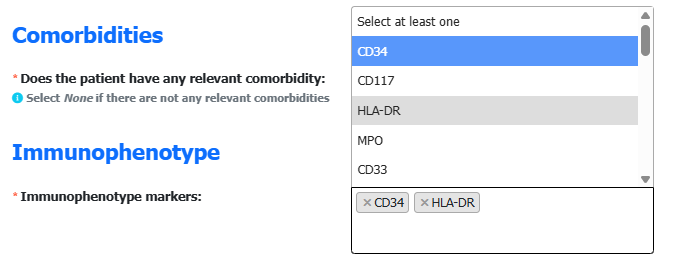
Multiple option selection: Select options from a dropdown list by scrolling or typing in the search box. Each selected option
appears as a tag with an “x” on the left. Click the “x” to remove that option. For example:
-
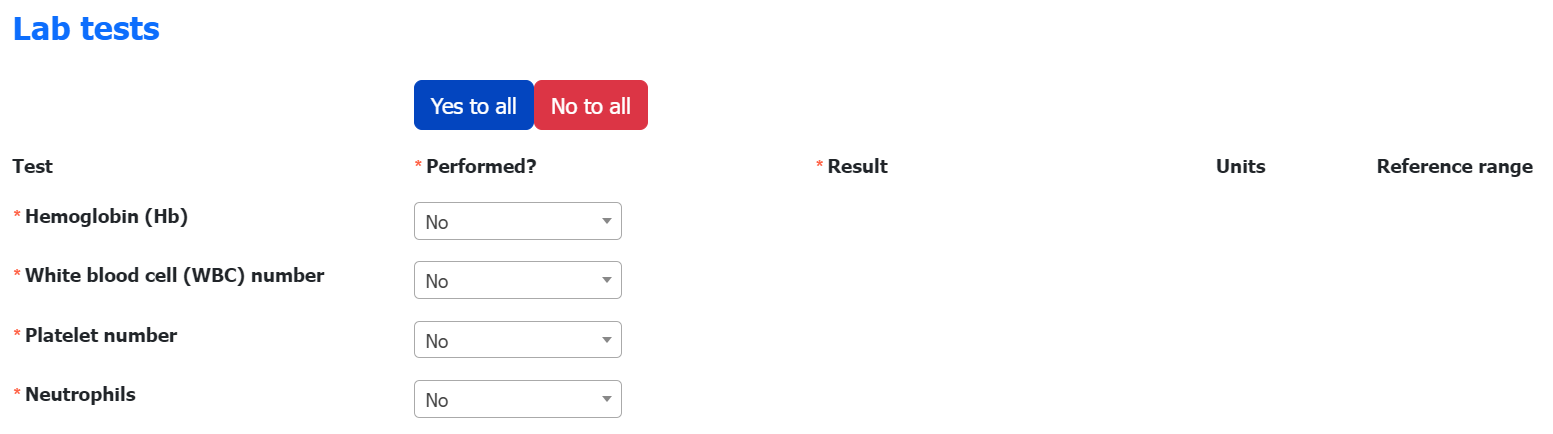
“Yes to all”, “No to all” buttons:
These buttons are available for groups of yes/no fields. For example:
To register a new patient, click the button on the main page.
The platform automatically generates the patient’s pseudonym after you save all the required data, including:
-
Informed Consent and Biobank: Enter the statements covered by the patient’s signed consent.
You must select the checkbox confirming that the patient has consented to the processing of pseudonymised data within STREAM before you can proceed with registration. - Demographics:
- Date of birth and gender at birth.
- Country of residence and country of birth.
- Leukemia diagnosis details.
All fields are mandatory and must be completed before clicking the button at the end of the page:

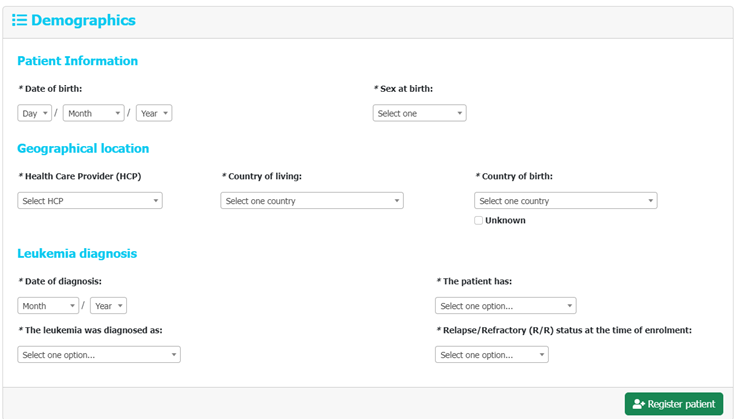
After you click Register patient, STREAM generates the pseudonym. Please save the pseudonym in your local records so that you can link it to the patient’s identity.
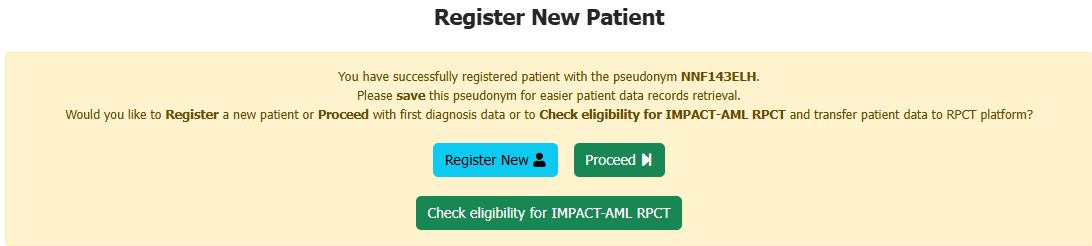
You can then register another patient or complete the first diagnosis data for the patient you have just registered.
You can access a patient’s First diagnosis data immediately after registration or through their medical history. These are the patient’s baseline data at the time of diagnosis. In the patient list, find the patient’s pseudonym, using the search box if needed, and click the folder icon in the View column to view or edit their data.
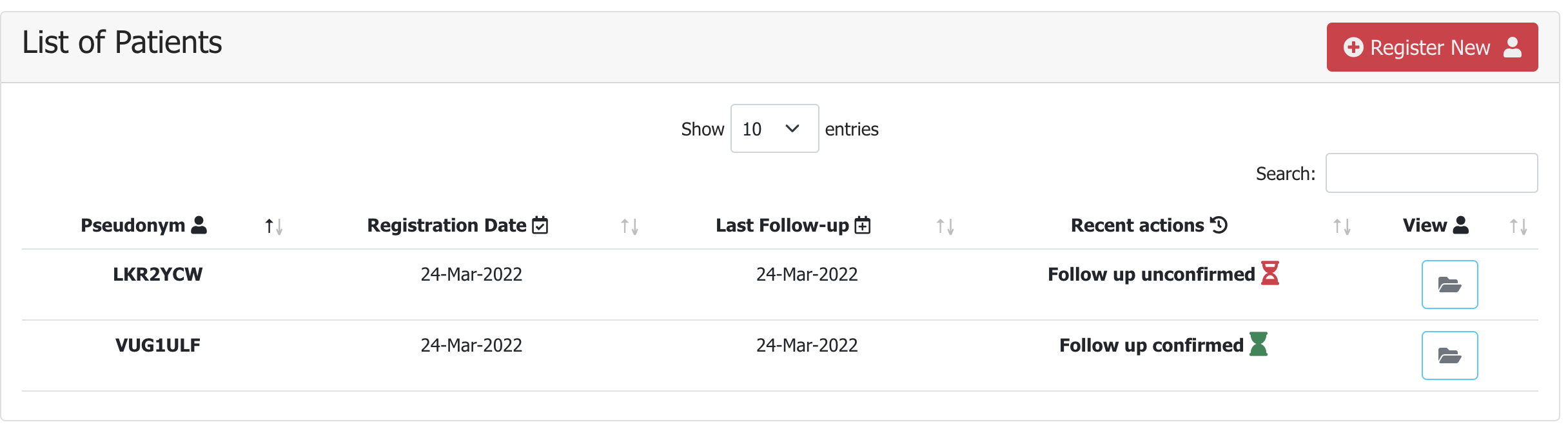
After you select a patient, their medical history appears. Click the folder icon in the View column to view or edit their first diagnosis data or data for a specific follow-up.

- Data entry by category
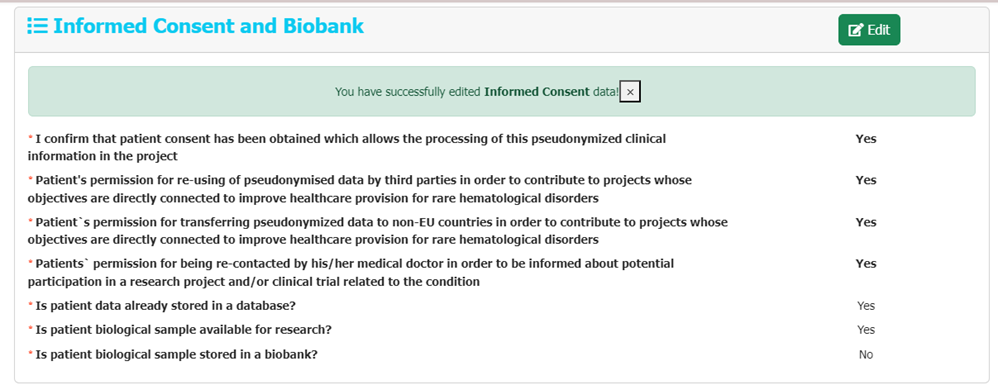
This category includes Informed Consent and Biobank,
Demographics information, and Clinical Diagnosis information. You can edit
or add to the data entered during registration:
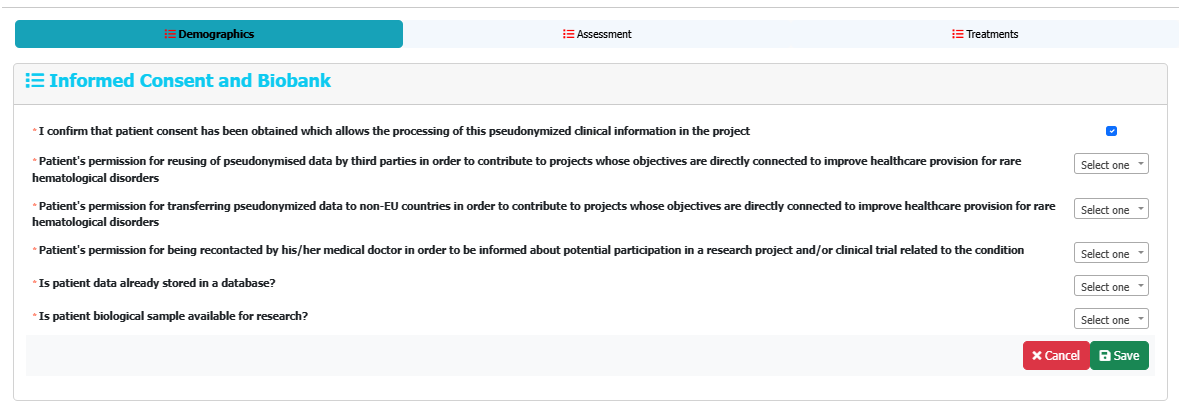
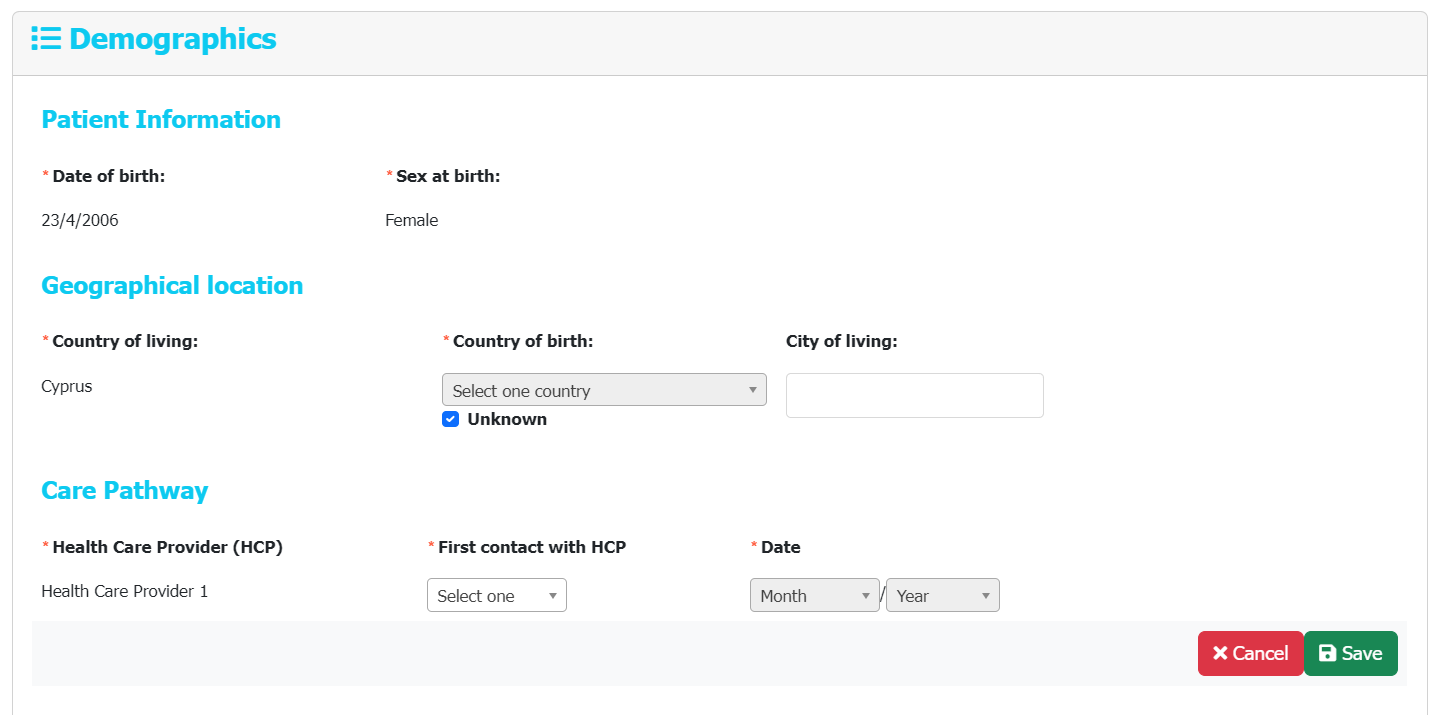
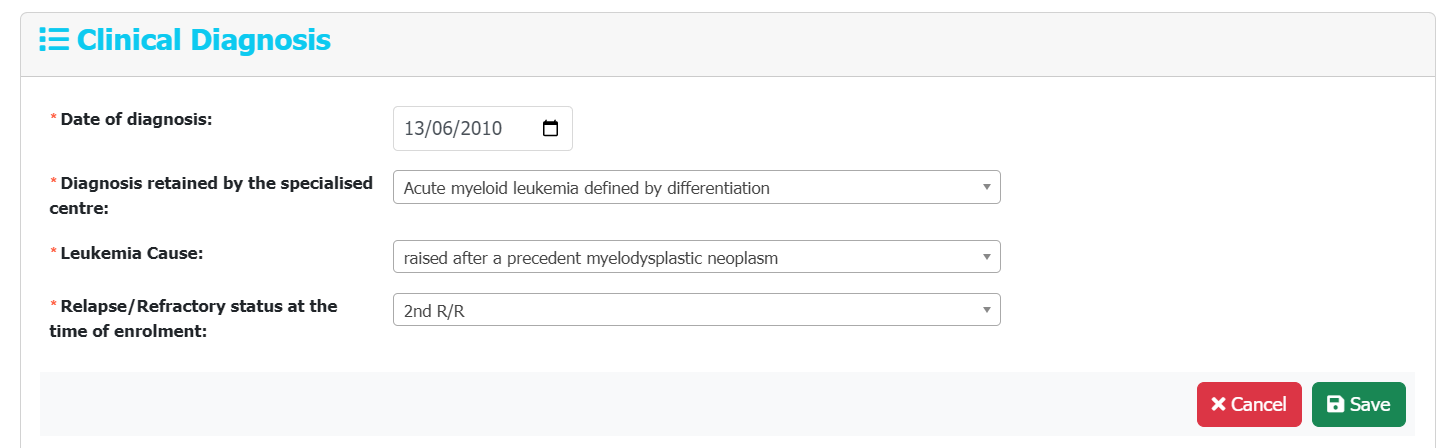
Once all Mandatory
fields are complete, click “Save”
at the bottom of the page. To make changes after saving, click
“Edit” at the top right of the subsection.

This category includes fields related to Method and time of diagnosis, Clinical course of the disease, Comorbidities, Testing data based on the method of diagnosis, Offspring and patient disability data and Biological/lab tests performed.
Complete the required fields (marked with *). Additional questions appear automatically depending on the method of diagnosis and other options selected.
The following buttons help you complete the lab test fields:
- Yes to all: Marks all tests as performed (“Yes”) and displays the corresponding result fields. You can then mark any tests that were not performed as “No”.
- No to all: Marks all tests as not performed (“No”). You can then mark any tests that were performed as “Yes” and enter their results.
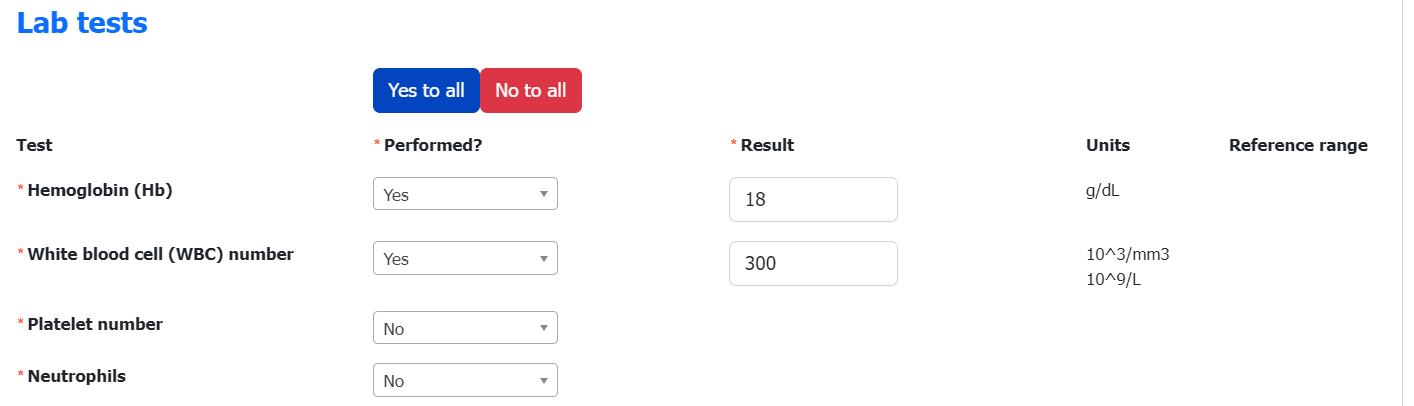
Once all Mandatory fields are complete, click “Save” at the bottom of the page. To make changes after saving, click “Edit” at the top right of the subsection.

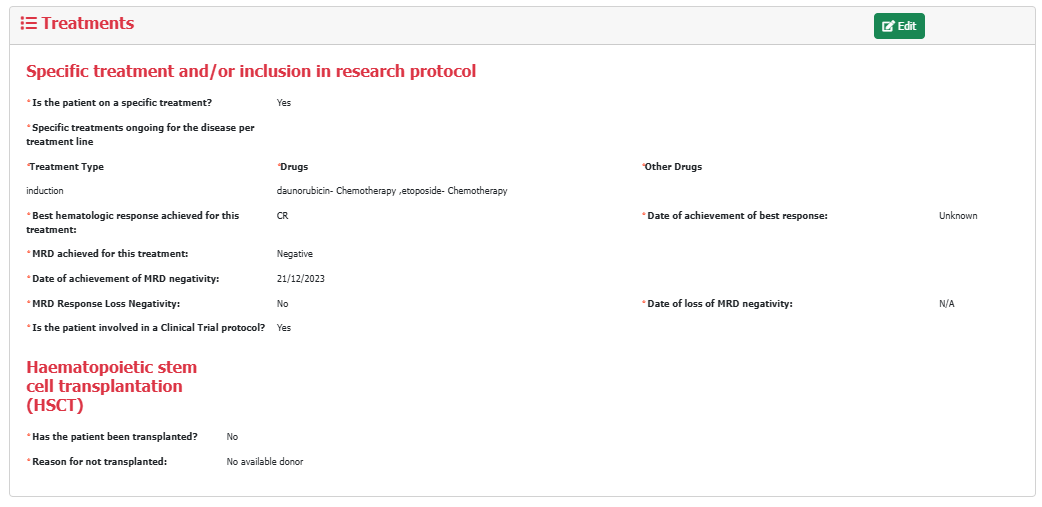
This category includes fields on specific treatments, the MRD response for this treatment, the best response achieved for this treatment, and whether the patient underwent hematopoietic stem cell transplantation.
Complete the required fields (marked with *). Additional questions appear automatically depending on MRD negativity and other options selected.
Once all Mandatory fields are complete, click “Save” at the bottom of the page. To make changes after saving, click “Edit” at the top right of the subsection.
-
Confirmation of First Diagnosis Registration
Once all categories have been completed and saved, you can click on “Confirm all changes”.

If any category has not been saved, a warning message appears:
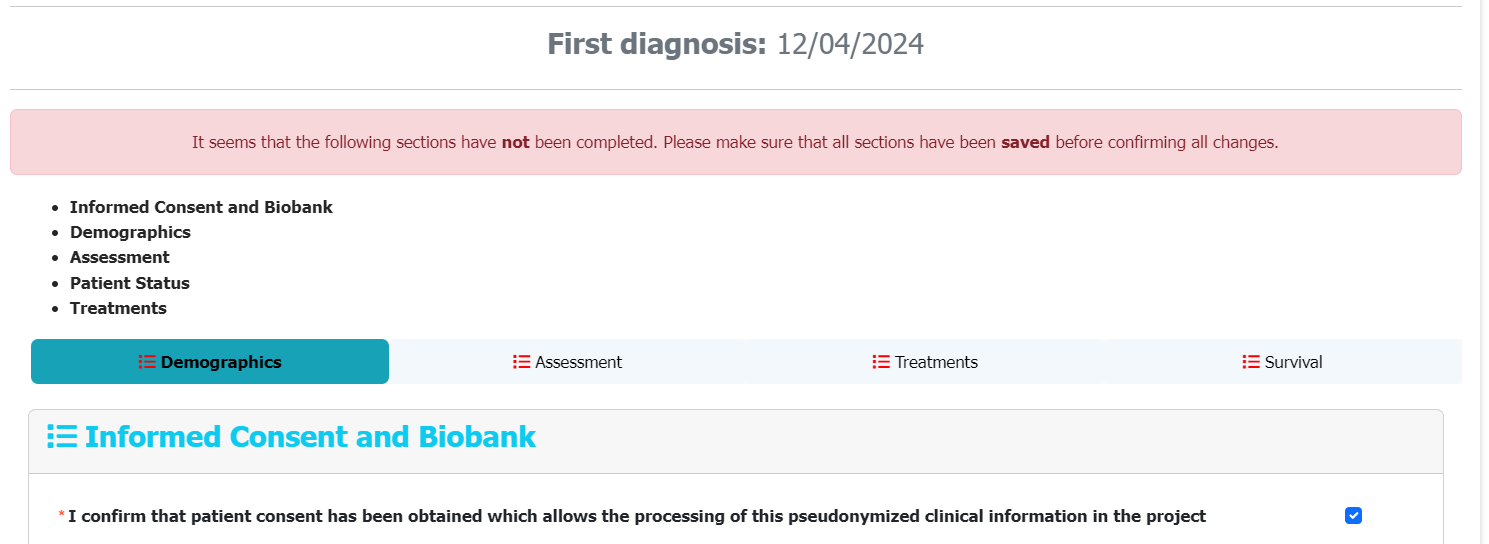
After you click Confirm all changes, you are directed to the Patient Medical Record page, where the registration is completed and shown as “First diagnosis confirmed”. Otherwise, the patient information will remain unconfirmed.
To create a new Follow-up, click the open folder icon in the View column of the patient list on the STREAM Home page:
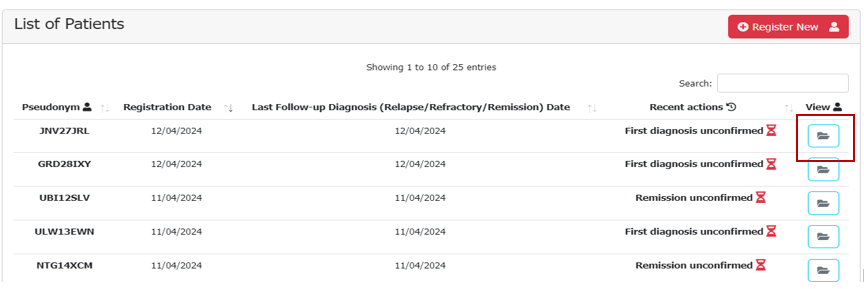
The folder icon takes you to the Patient Medical Records page, where you will be able to click on Follow up:
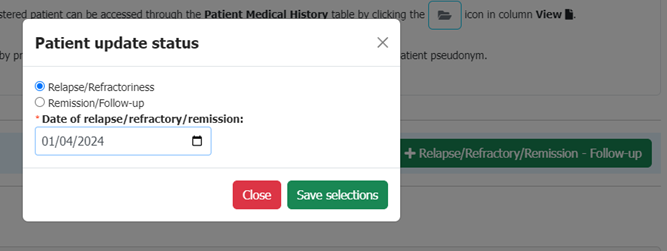
-
Entering and updating data by category
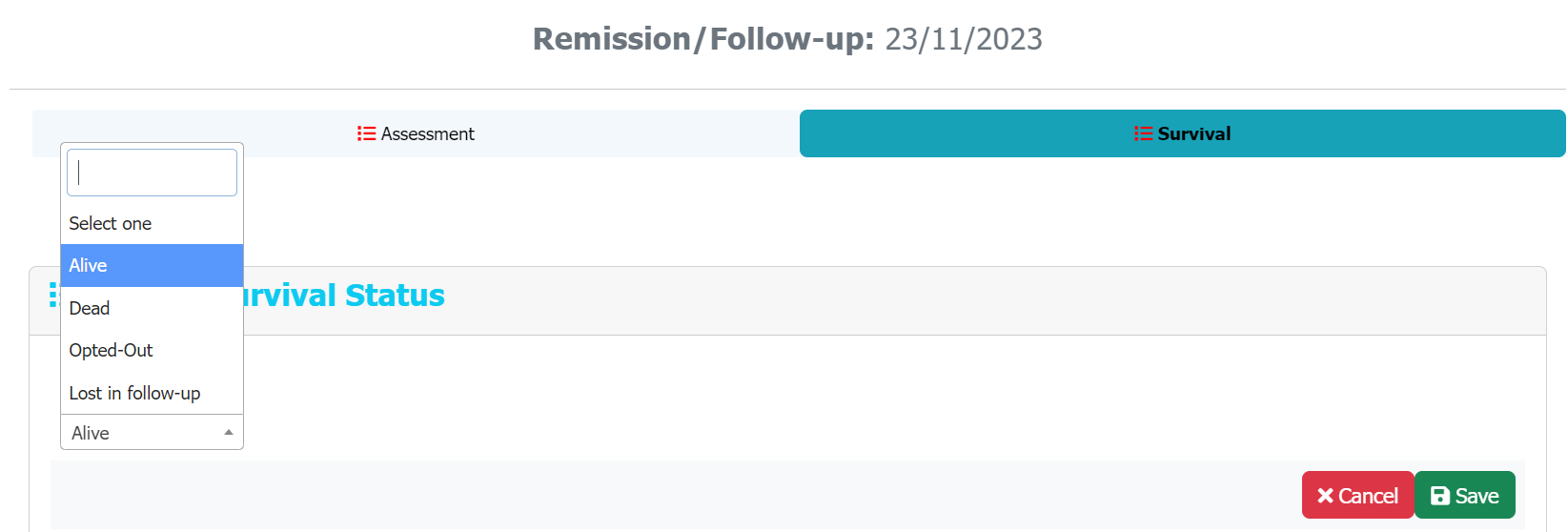
After clicking Relapse/Refractory/Remission, a pop-up window appears. Select the patient diagnosis stage at this follow-up and enter the follow-up date. After saving the changes, the new follow-up episode (in Relapse/Refractory or in Remission) is added to the patient’s medical history.
- When adding follow-up data for a patient in the Relapse/Refractory stage, fixed elements (Informed Consent, Demographics and Clinical Diagnosis subsections) are not displayed because they are entered only once.
- When adding follow-up data for a patient in the Remission stage, only the Survival elements and some Assessment elements are displayed (Clinical course, Comorbidities, Offspring and Patient Disability).
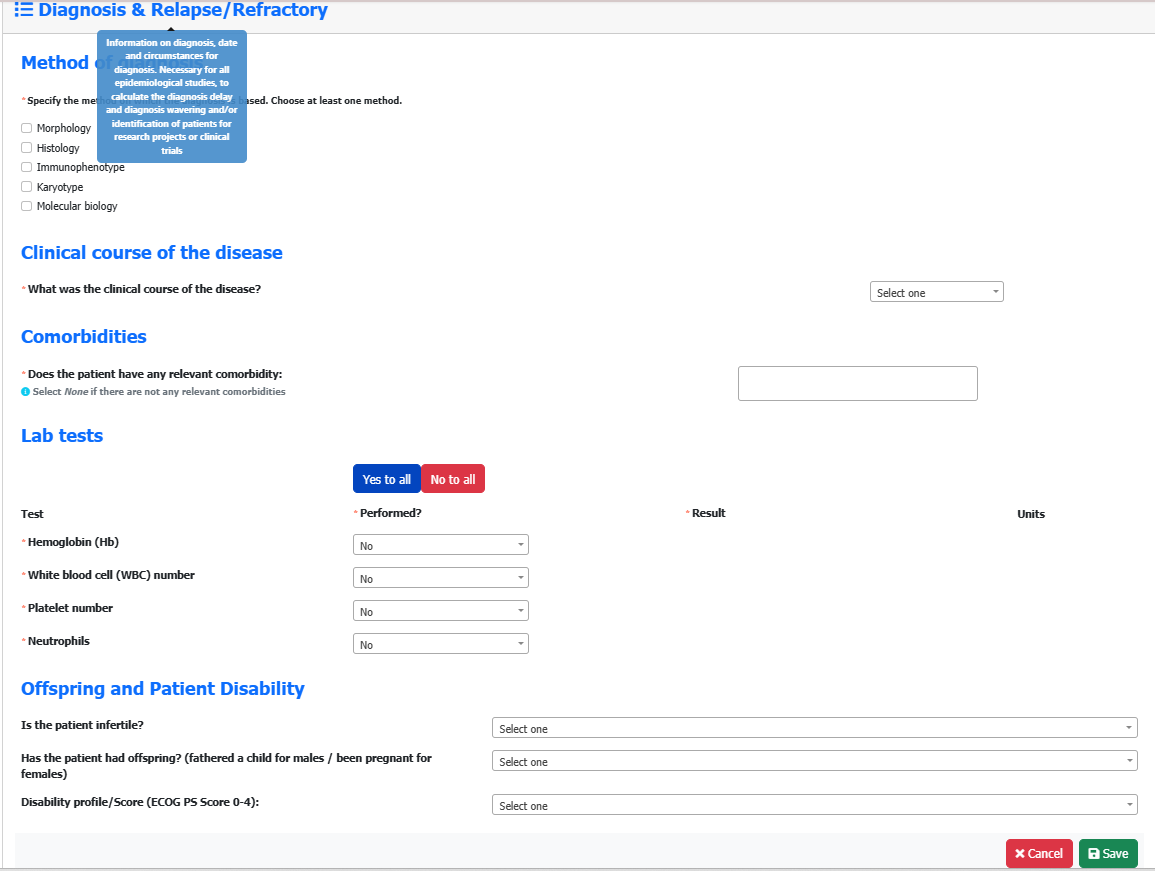
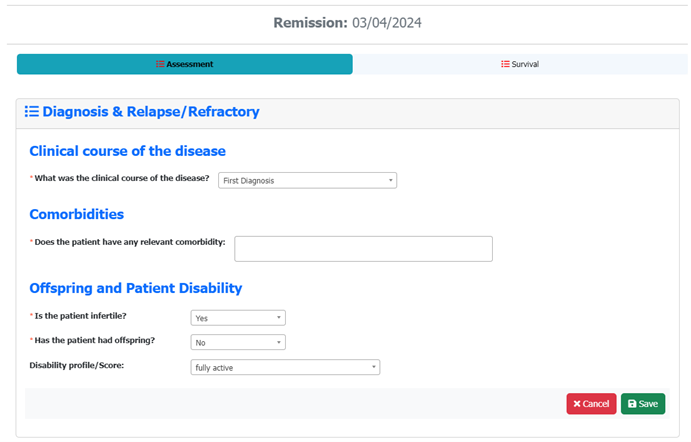
-
Confirmation of Follow-up registration
Follow the same steps as for First diagnosis registration, once all categories (three for Relapse/Refractory and two for Remission) have been completed or updated and saved, click the “Confirm all changes” button. If any category has not been saved, a warning message appears.
After you click Confirm all changes, you are directed to the Patient Medical Records page, where the registration is completed and shown as “Relapse/Refractory (or Remission) confirmed”. Otherwise, the patient information will remain unconfirmed.

Patient data can be accessed by clicking on the open folder icon in the View column of the patient list on the STREAM Home page:
To search for a patient, type all or part of their pseudonym in the search box.

First Diagnosis and Follow-up (Relapse/Refractory/Remission) data can be accessed by clicking on the open folder icon in the View column of the patient list on the STREAM Home page:
After registering a patient, you can check their eligibility against the basic inclusion and exclusion criteria for the IMPACT-AML RPCT and transfer their data to the RPCT platform, if you have permission to transfer patient data.
When the user clicks the button , a pop-up window prompts them to enter the date on which the RPCT informed consent was signed.
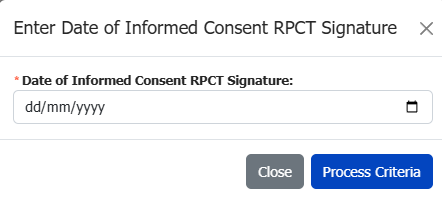
After you enter the date on which the RPCT informed consent was signed, if the patient is eligible, a confirmation message will appear. This message includes a list of satisfied eligibility criteria and a link to transfer patient data to the RPCT REDCap platform.

If the patient is not eligible, the user can check the List of Criteria to find out which criteria are not satisfied.

If the user does not have access to transfer the patient data, the following message is displayed.

To check eligibility and transfer patient data for any clinical trial, open the patient’s medical history page and click the button. Note: For SURPASS, confirm the first diagnosis data before checking the patient’s eligibility.
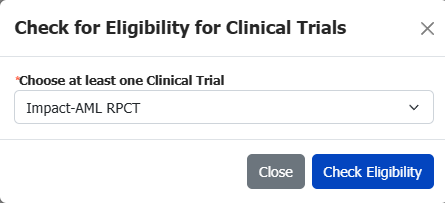
A modal window prompts you to select a clinical trial for the eligibility check. For example, select IMPACT-AML RPCT and click the button. Another modal window prompts you to enter the date on which the informed consent was signed.
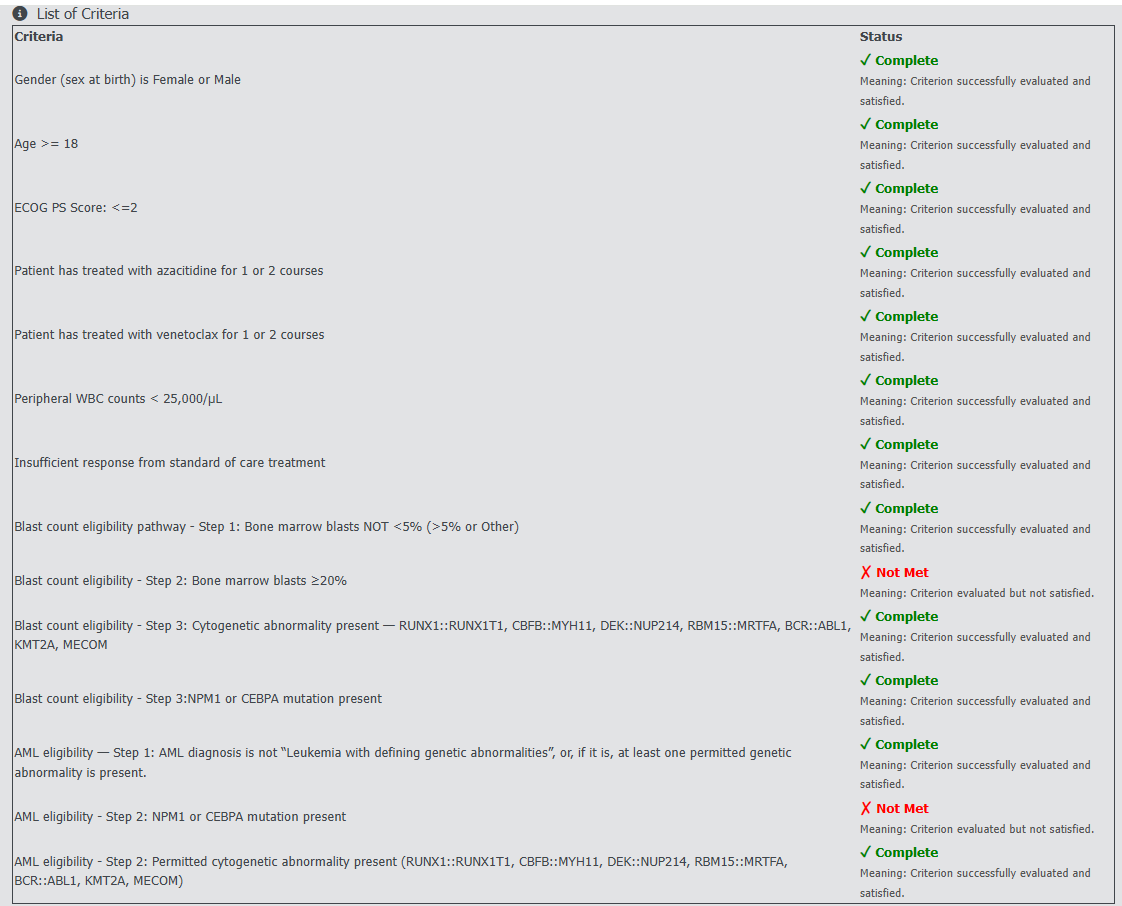
The results show which eligibility criteria are satisfied, not satisfied, or incomplete. If the patient is eligible, a confirmation message appears with a button to transfer their data to the REDCap platform.

After you click the transfer button, a modal window prompts you to confirm the transfer. Once the data have been transferred successfully, log in to REDCap using your credentials to view or update the transferred patient data on the RPCT platform.
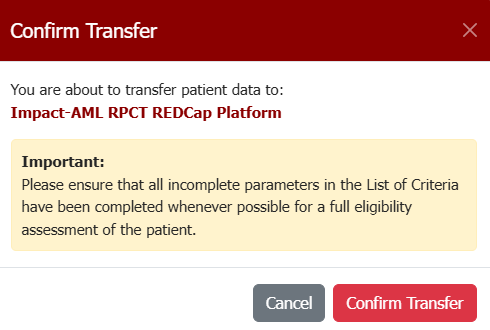

If the patient is not eligible, the user can check the List of Criteria to find out which criteria are not satisfied.
If the user does not have access to transfer the patient data, the following message is displayed.
To export all patient data from your centre (HCP) as a comma-separated values (CSV) file, click the button in the header of the List of Patients table on the main page.
When you select 'Download Patient Data', a CSV file will be generated. A window will then appear prompting you to save this file to your local drive. A window with acknowledgement and citation information will also appear, as shown below:
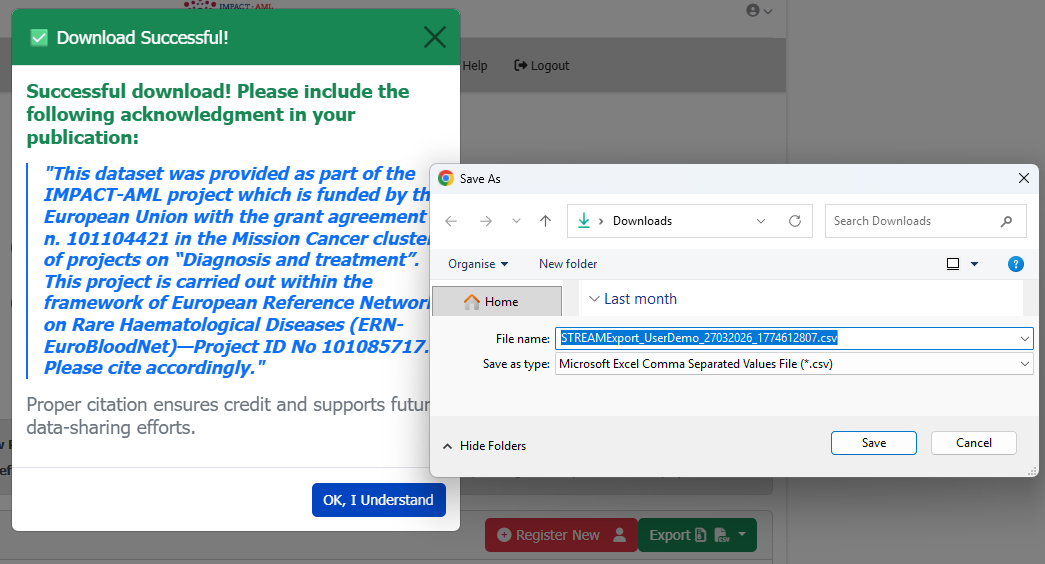
To assess the data quality of the patient records registered under your centre (HCP) and correct any validation errors, follow these steps: First, click on 'Data Reports' from the menu, then select 'Data Quality'. Next, choose your centre (or multiple centres, if you are a coordinator) and click the button. You will then see a table displaying all the validation errors for review and correction.
How to read the report
The report contains the following columns:
- Patient ID: The pseudonym of the patient record that violates a data quality rule. (This field is clickable and redirects to the patient’s medical history to help you resolve the issue.)
- Episode Date: The date of the episode for that record.
- Follow-up Visit: The patient’s status — First Diagnosis, Relapse/Refractory, or Remission.
- HCP Group: The name of the centre entering the record.
- Section: The section in STREAM where the rule is violated.
-
Type of Error: Indicates whether the issue is:
- Warning: Should be reviewed carefully
- Error: Must be corrected
- Solution: Guidance on how to resolve the issue.
- Parameter: The relevant parameter name or additional details about the issue.
Additional features: You can sort, search, or use dropdown filters on each field to quickly find specific records. The table can also be exported or saved in Excel, CSV, or PDF format, or copied to another file for further use.